How to use Date Parameter in Dashboard to call BIP Report.
When you are not able to fetch report from date parameter from Dashboard.
Business Requirement – Business requirement is to call BI publisher report having date parameter using dashboard/dashboard prompt.
Problem Statement – Report is giving conversion error when using date parameter in dashboard and report is going in error.
Solution– When you are not able to fetch report from date parameter from Dashboard.
Steps to follow to develop a sample report to get understanding of DATE Format Error.
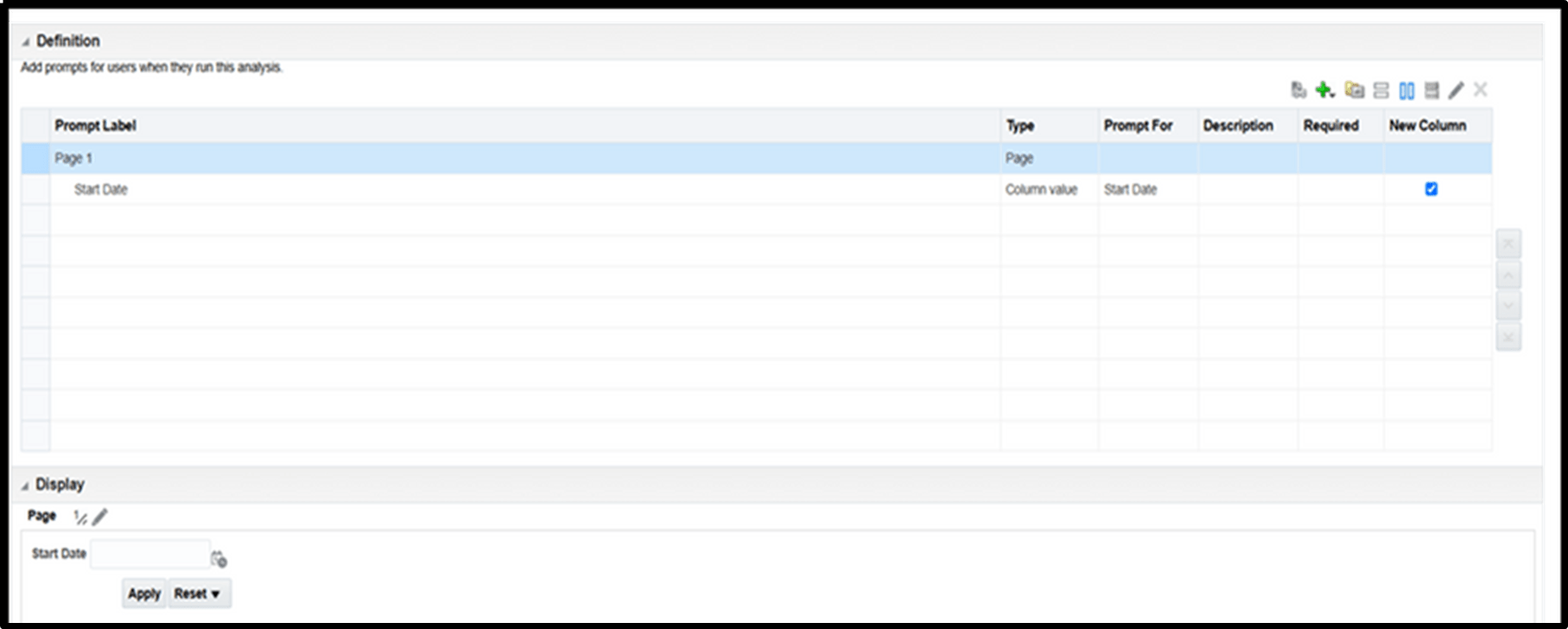
- Go to your existing Dashboard Prompt.
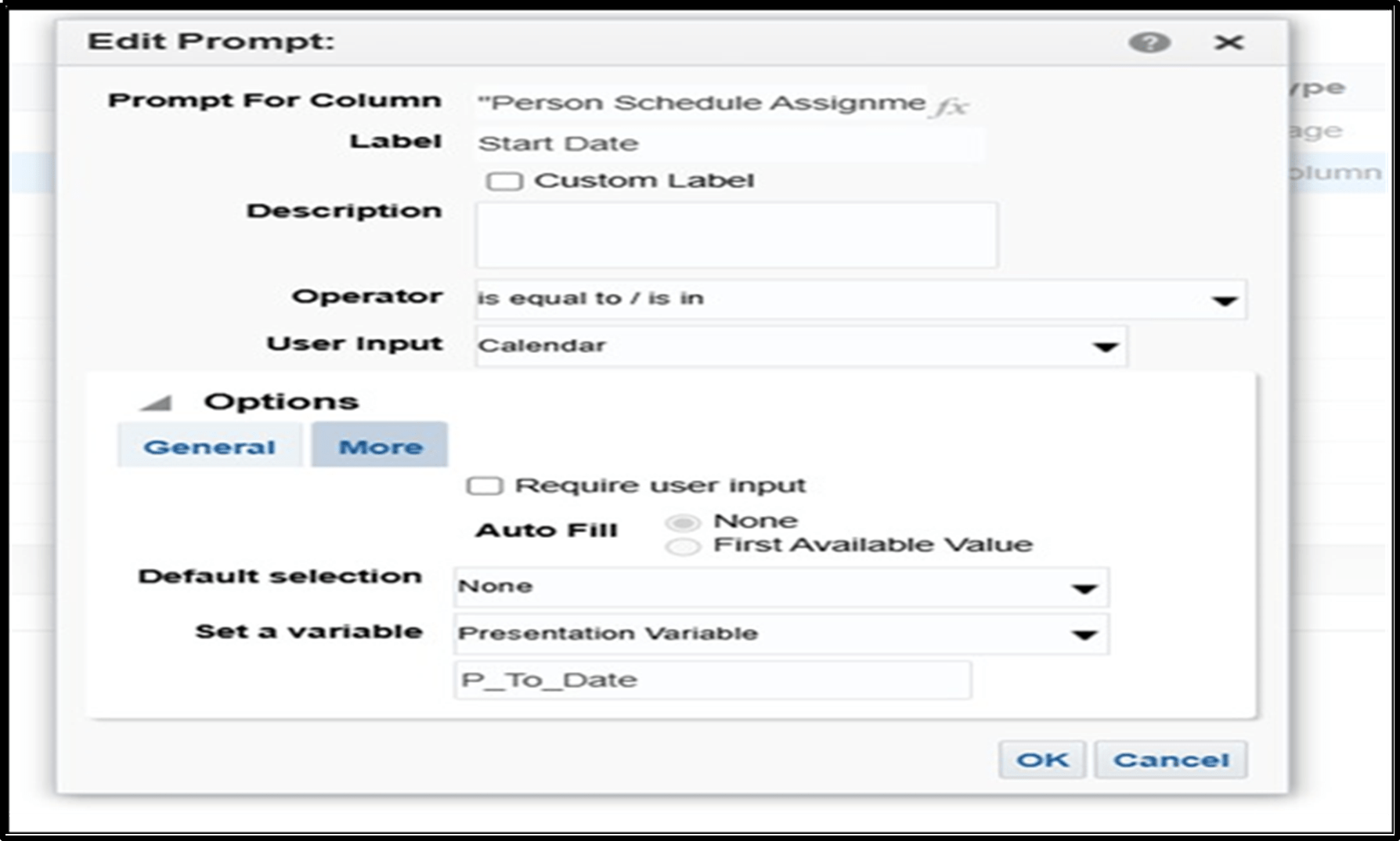
Step 2: Edit your date prompt, as per your requirement you can choose multiple types of default selection. For now, I’m going with none.
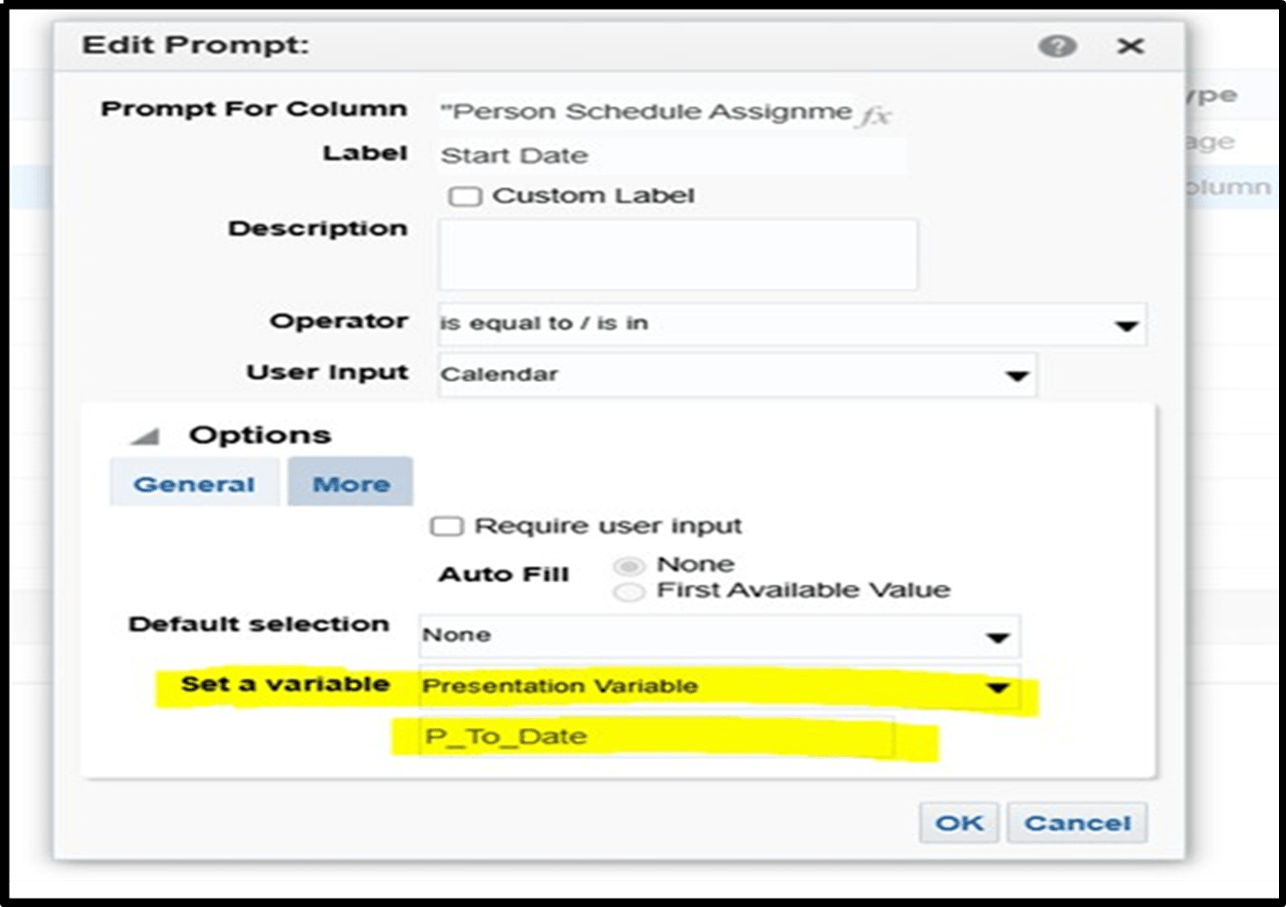
Step 3: Set variable as presentation variable and add the parameter name that you have given in your
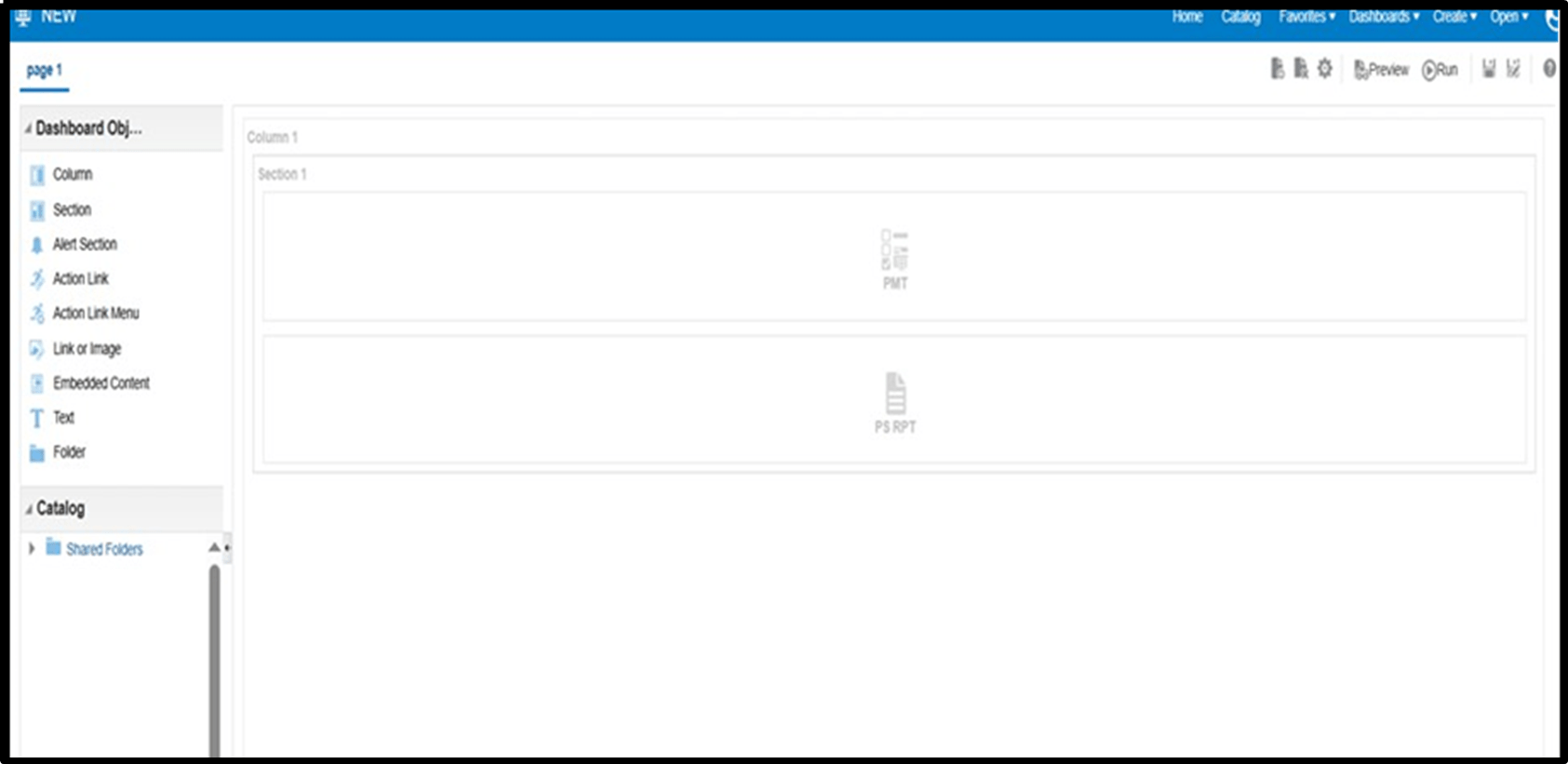
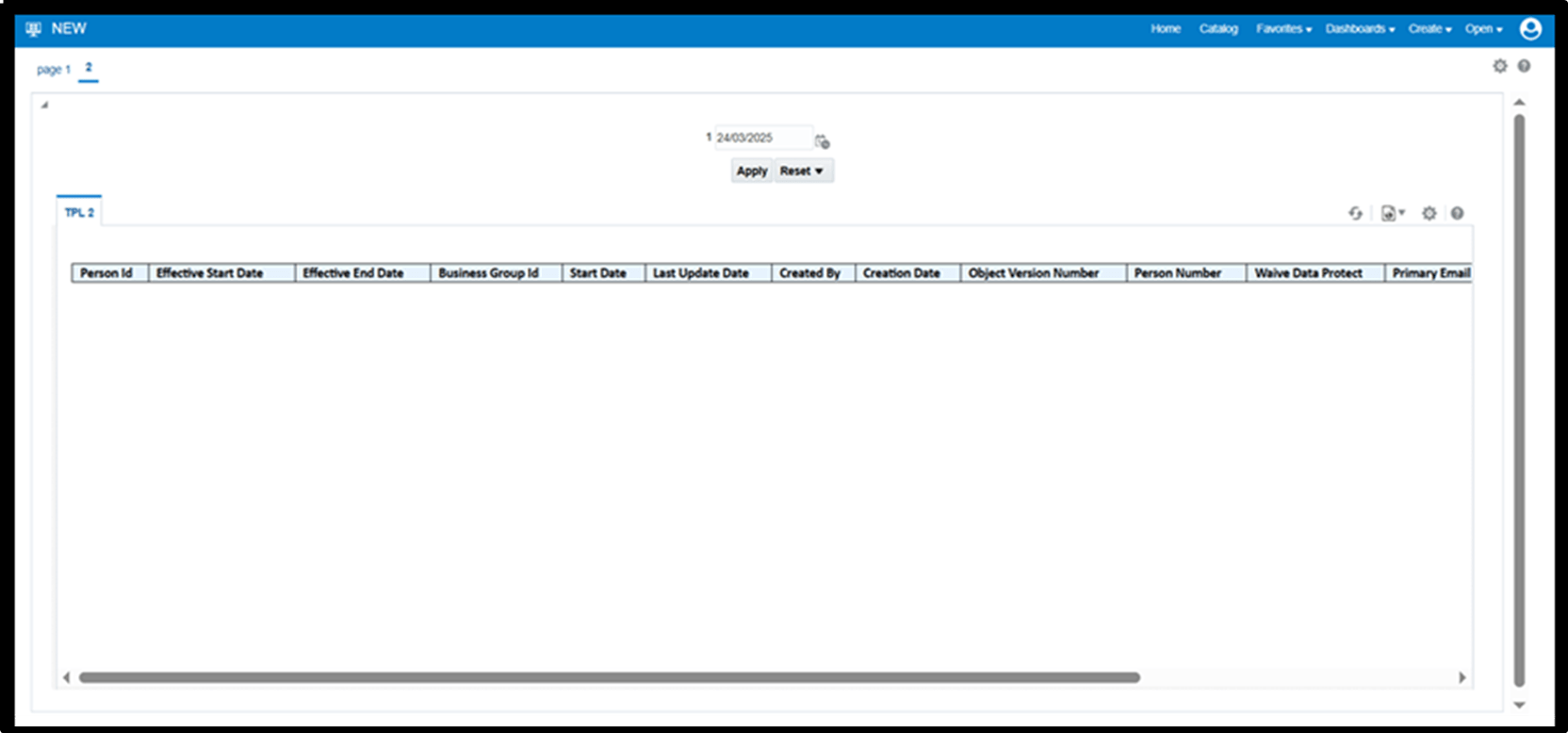
Step 4: Add your prompt with report on the Dashboard And run.
Step 5: After running this Dashboard Prompt, you will receive error, not receiving any data in report.
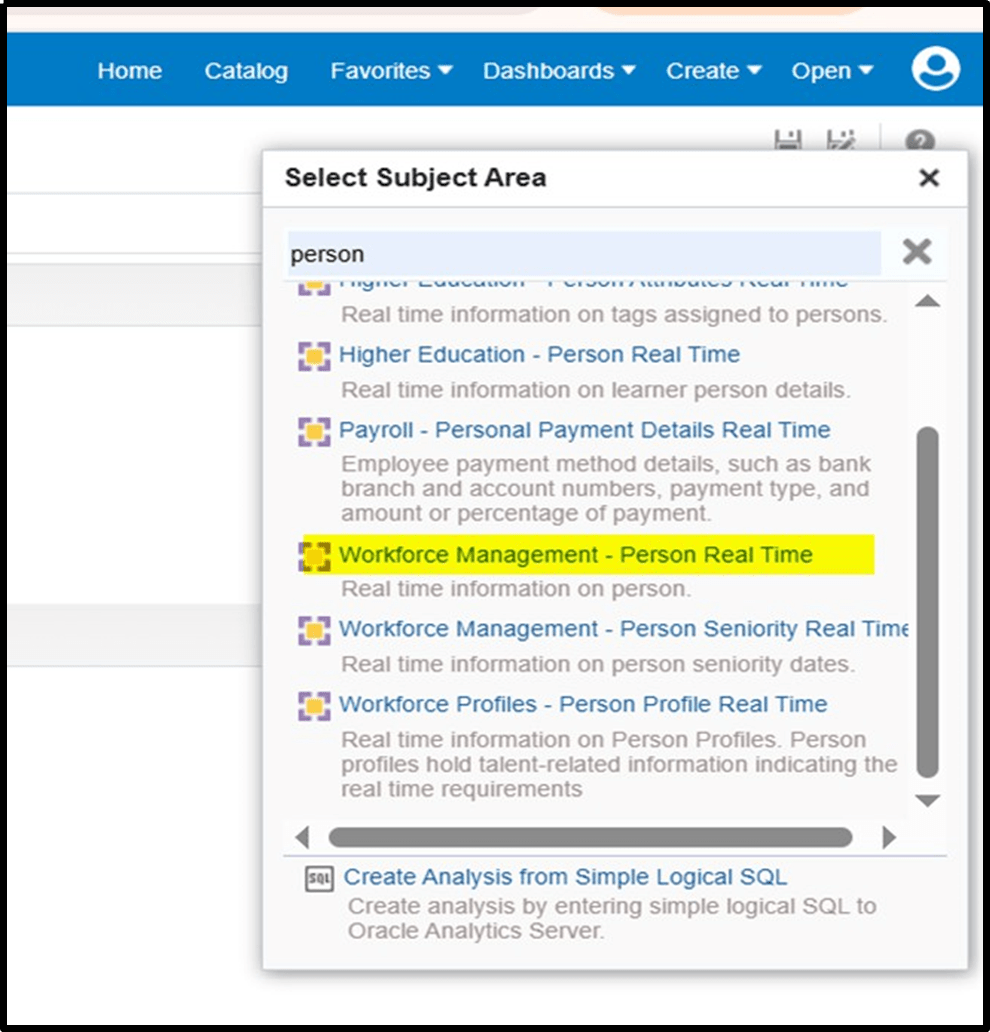
Step 6: Go to analysis and add a random Subject I selected the Workforce Management Person Real Time Subject area.
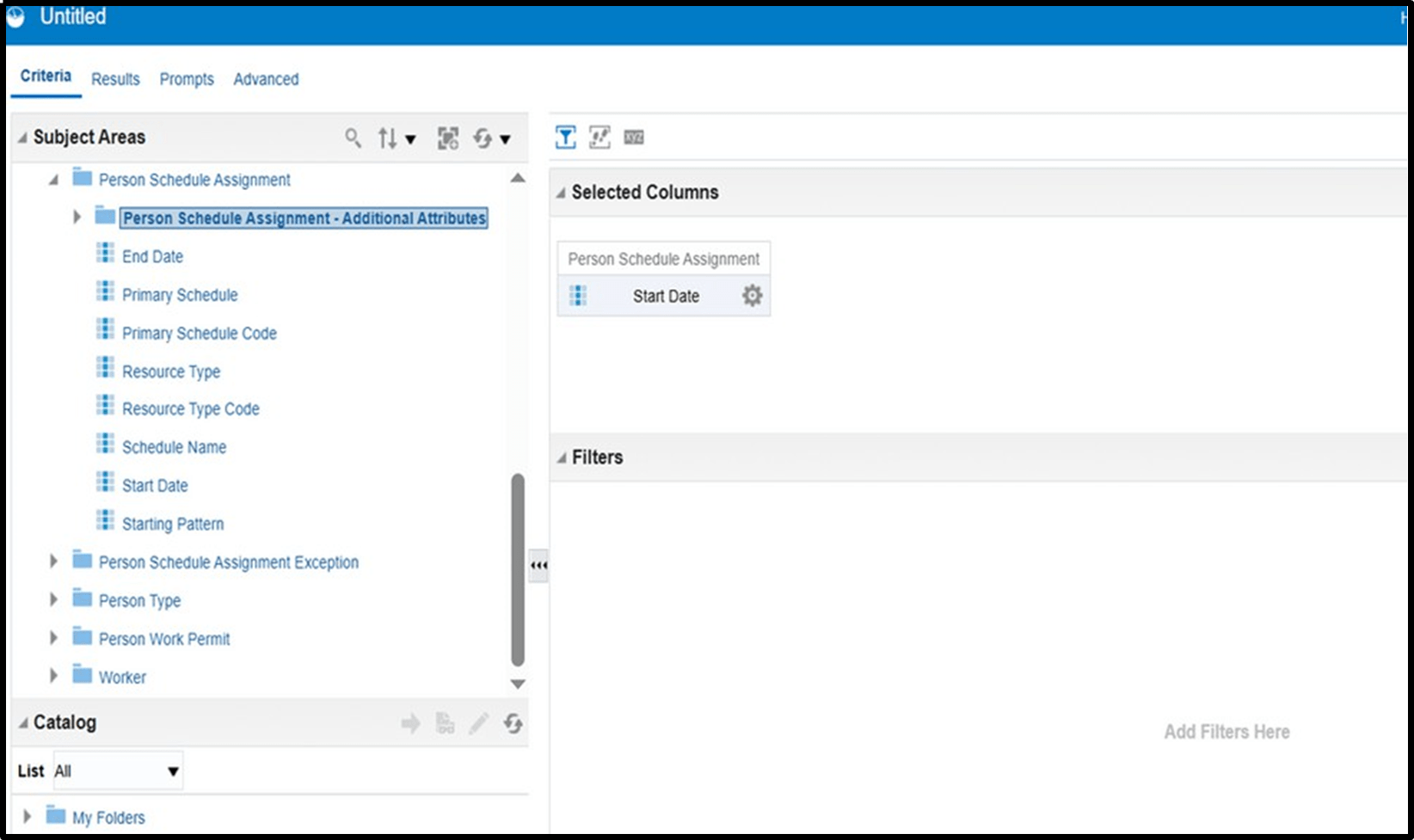
Step 7: After selecting the above subject area you need to select a data format For now, I selected Person Schedule assignment.
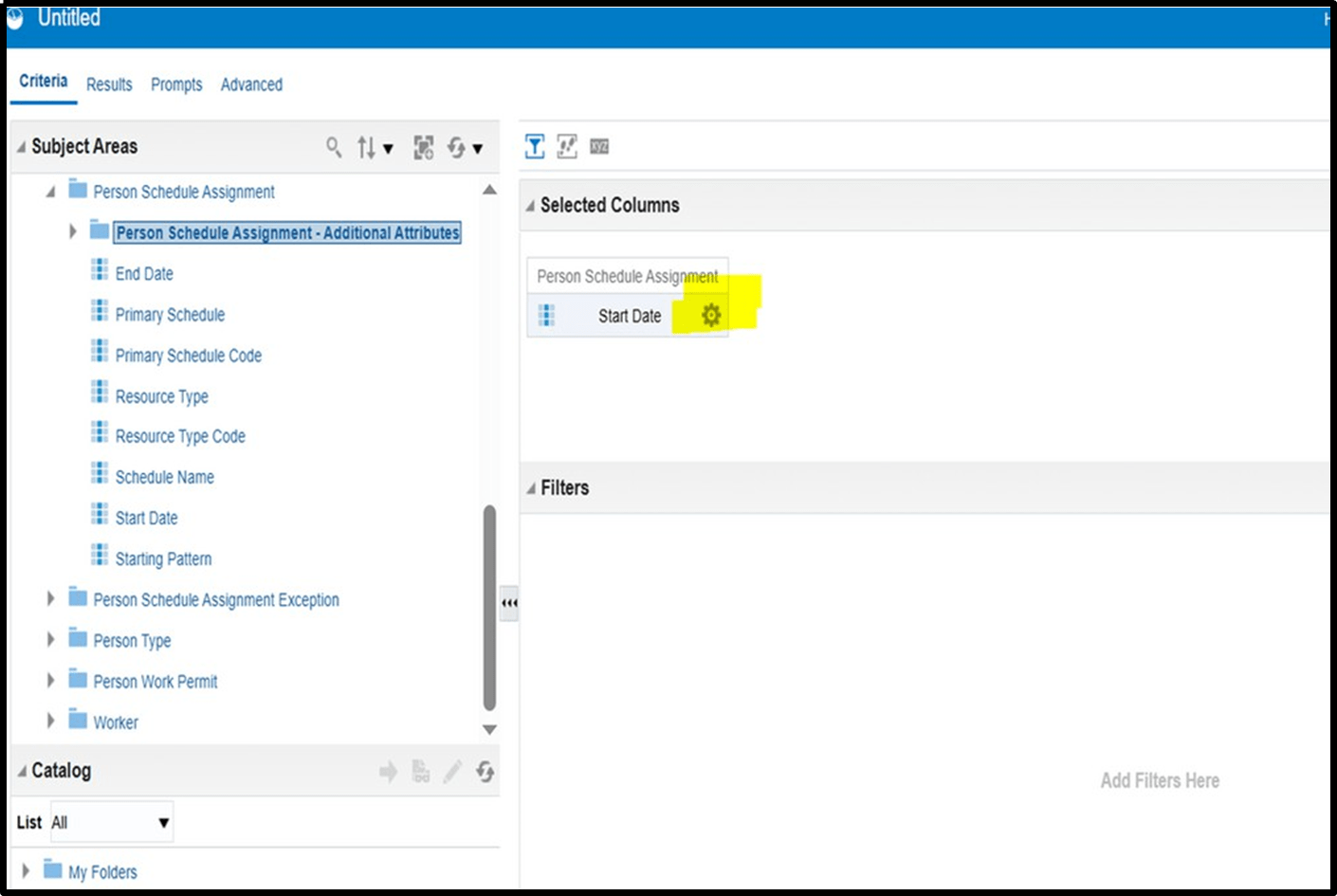
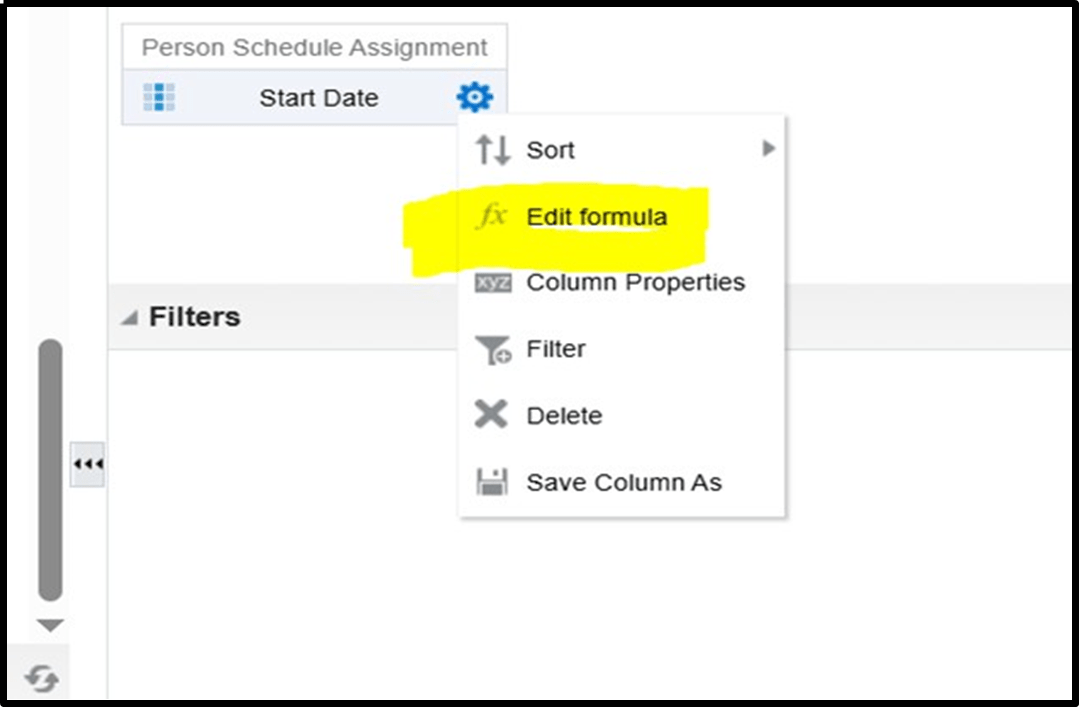
Step 8: Click on the settings icon as shown.
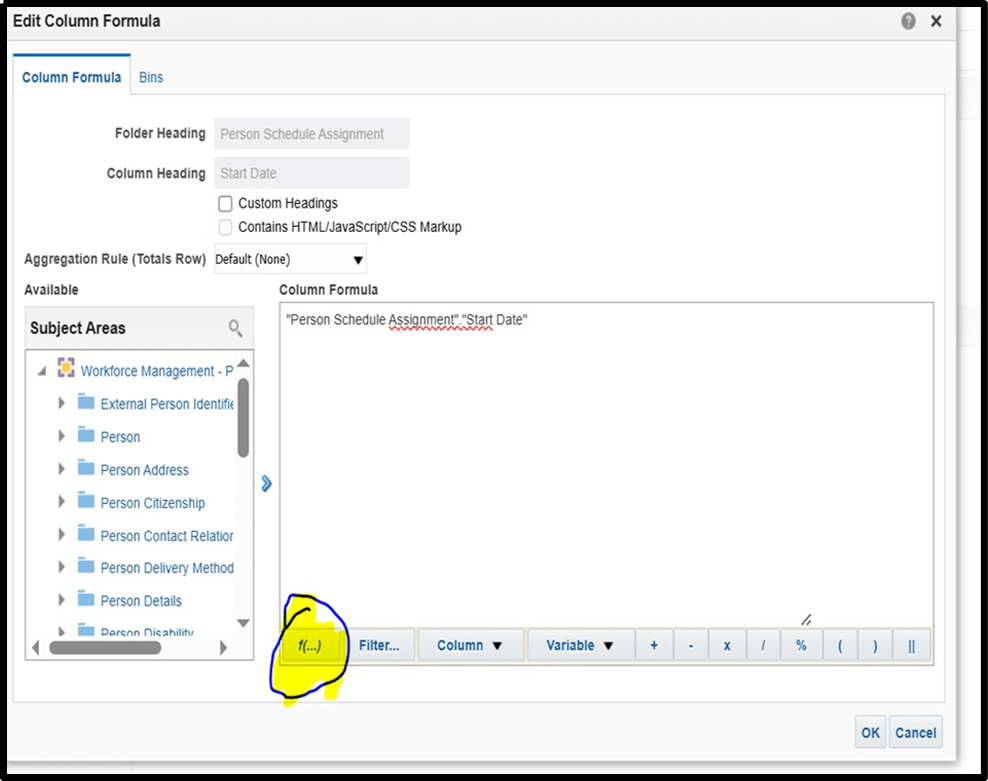
Step 9: You need to edit the formula.
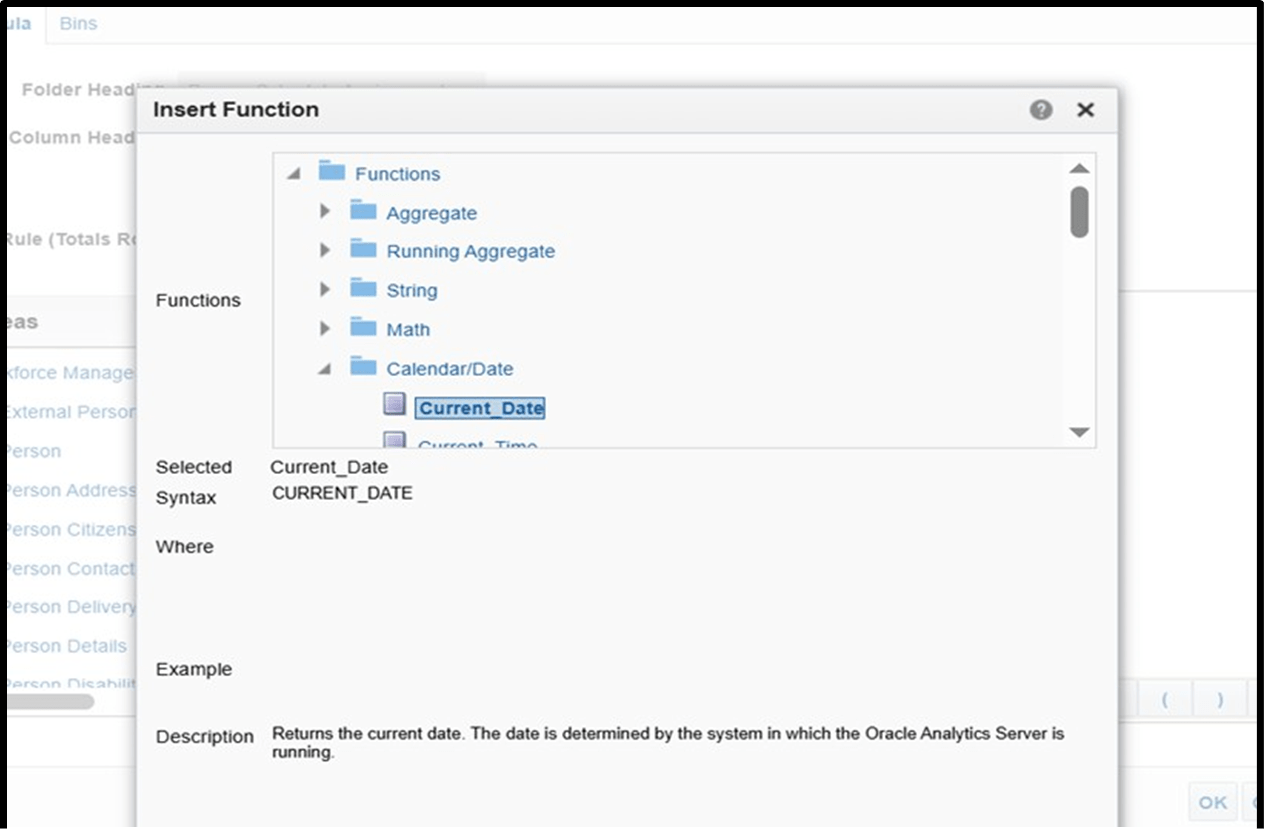
Step 10: Click on below shown option.
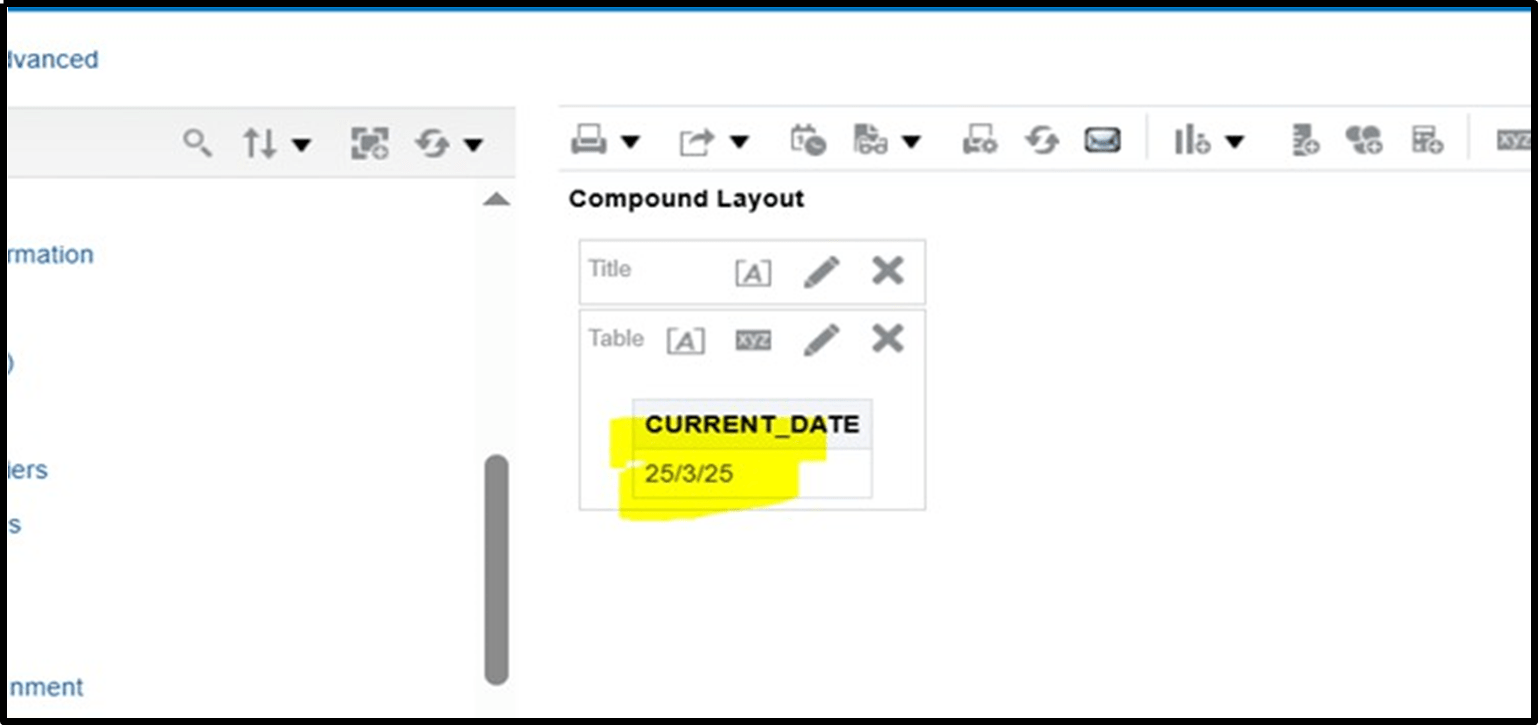
Step 11: You need to click on current date inside.
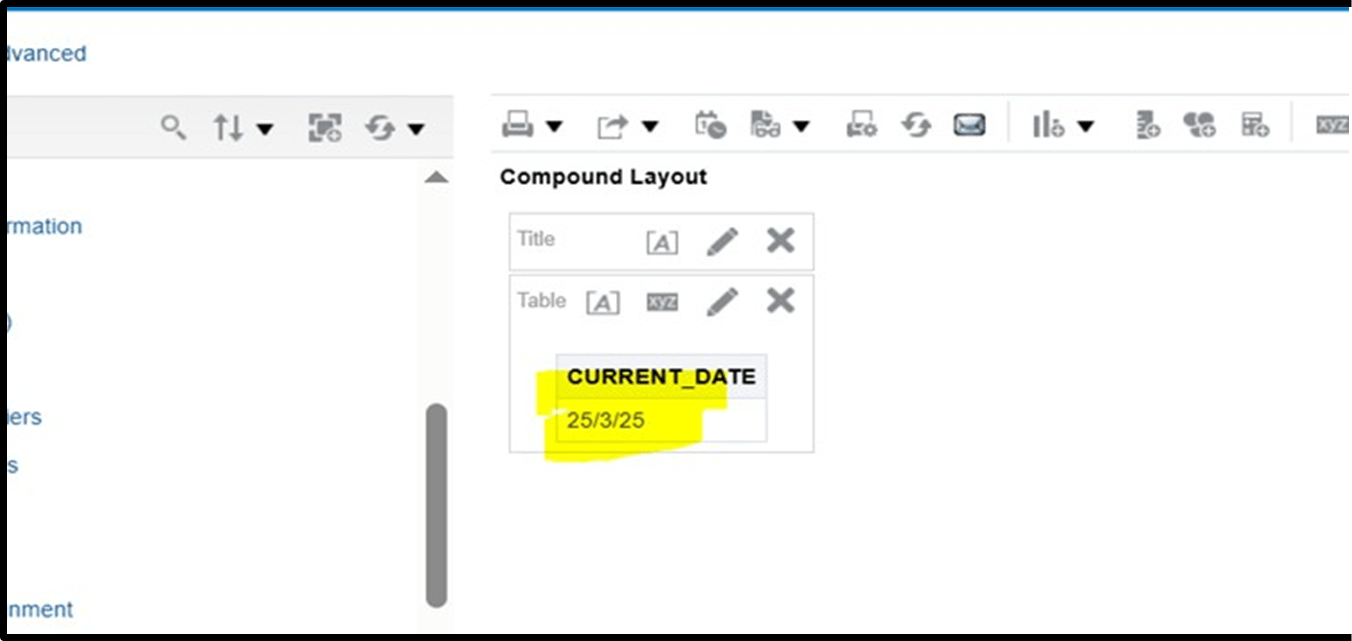
Step 12: After selecting current date you need to check date format in results section.
Step 13: You need to understand what’s the problem here. What date format parameter we are passing in our report. So, we should pass the proper date format which both dashboard and BI properly accepts in database.
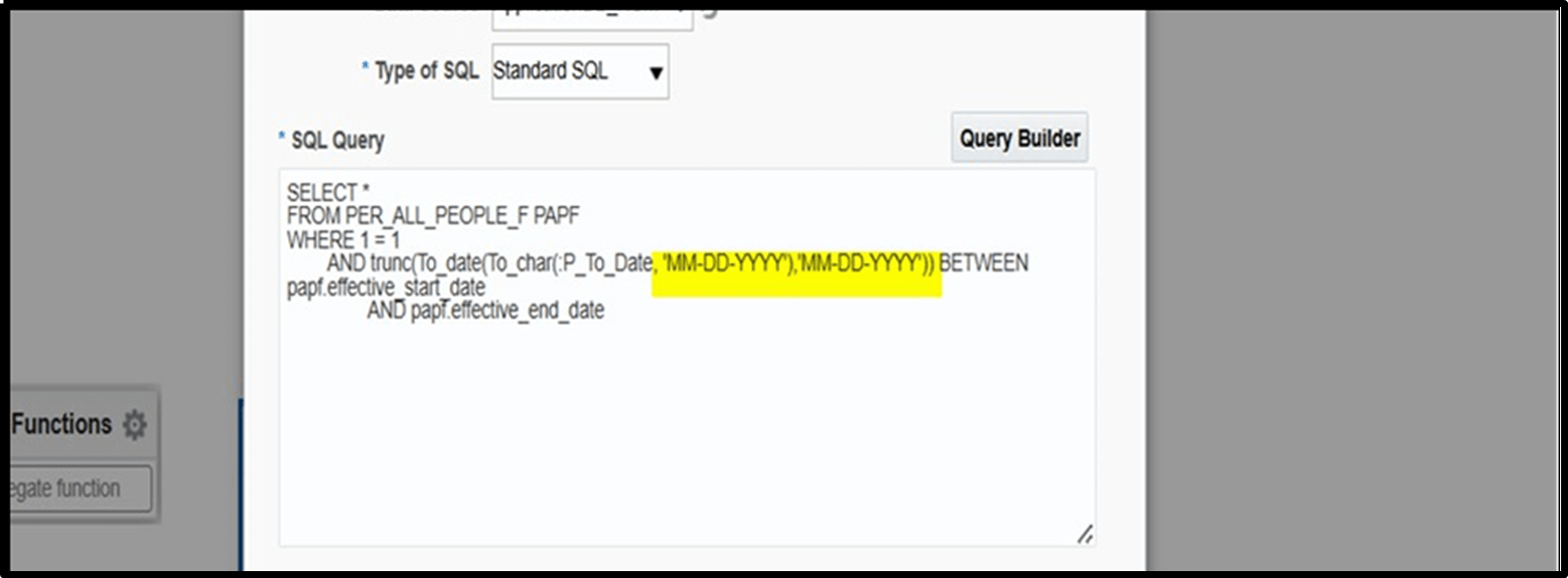
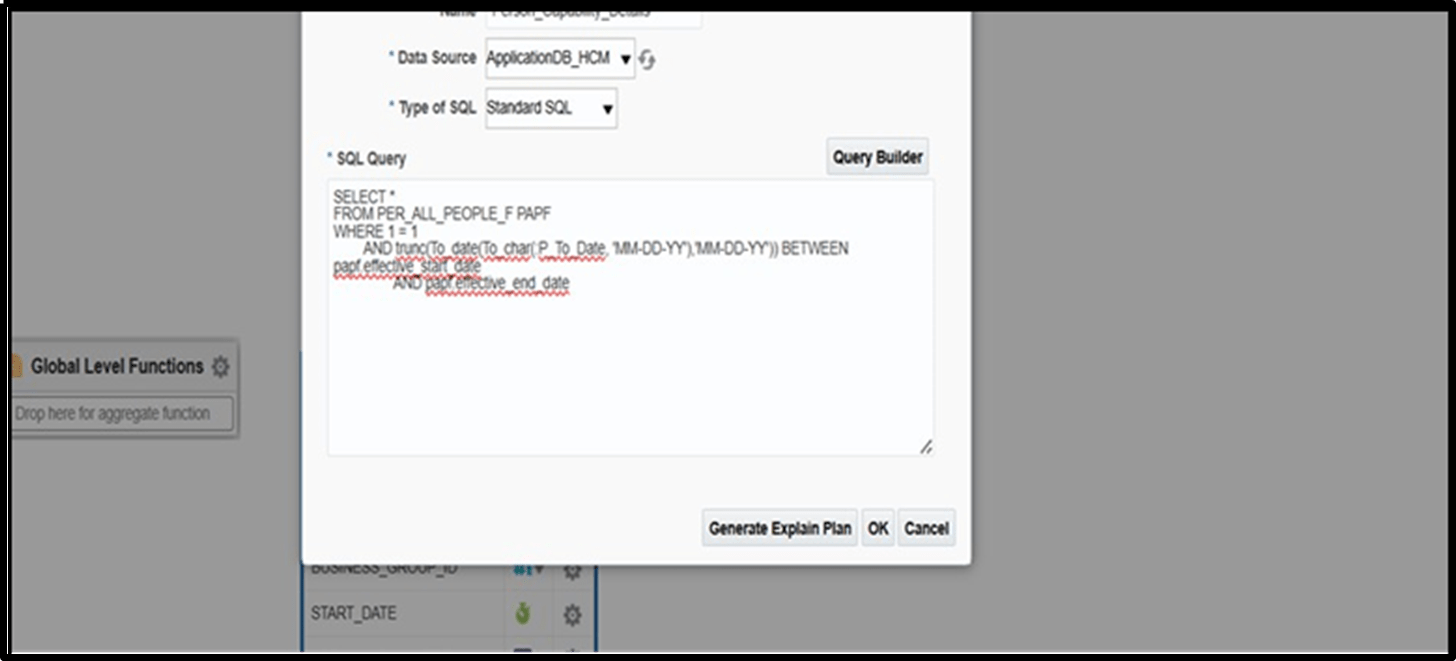
Step 14: Go to your Data Model and check date format.
Step 15: Most important point is you need to pass date format in query that Dashboard accepts.
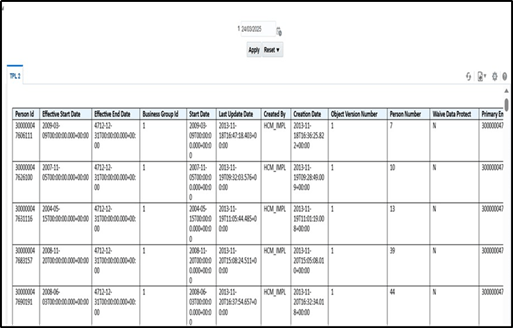
Step 16: After updating date format run your Dashboard report and fetch your result.
Prepared by:- Abhinav Sharma – HCM Technical Consultant Motifzone Pvt Ltd.