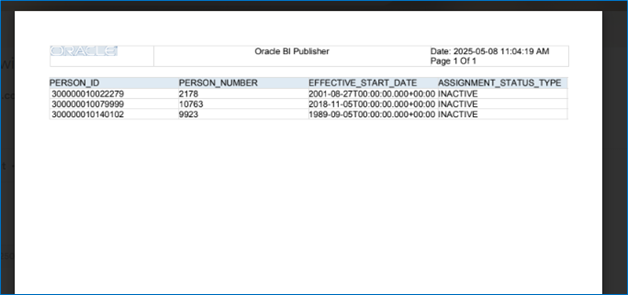
Bursting Functionality in Oracle HCM Fusion.
SAFE HARBOUR STATEMENT-
The information contained in this document is confidential and proprietary to Motifzone PVTLTD (known as Motifzone henceforth).
Single Bursting in Oracle Fusion HCM
- Definition:
Single Bursting is a reporting technique used in Oracle Fusion HCM to generate and deliver personalized reports for multiple recipients in a single report execution. - Use Case:
Commonly used for pay slips, tax forms, or performance reports where the same report format is used but the data varies per employee or manager. - Single Run, Multiple Outputs:
Executes the report once but produces multiple output documents — one for each intended recipient. - Personalization:
Data is filtered per recipient using a bursting query or logic, ensuring each recipient gets only their relevant data. - Delivery Channels:
Output can be sent via email, printed, or stored in a content server. Each output can be routed differently. - BI Publisher Integration:
Utilizes Oracle BI Publisher’s bursting feature, where a bursting definition is configured to specify how to split and deliver the output. - Efficiency:
Saves processing time and resources compared to running the report individually for each user. - Security:
Ensures that sensitive information is isolated and securely delivered to the correct recipient. - Common Formats:
Outputs are often in PDF format, but Excel, Word, and HTML are also supported. - Configuration:
Bursting is configured in the BI Publisher report definition through a bursting XML file or bursting control file, which defines:
- Report data split logic
- Output format
- Delivery method
- Delivery destination
Step 1: Log in to Oracle Fusion Applications & Define the Data Model
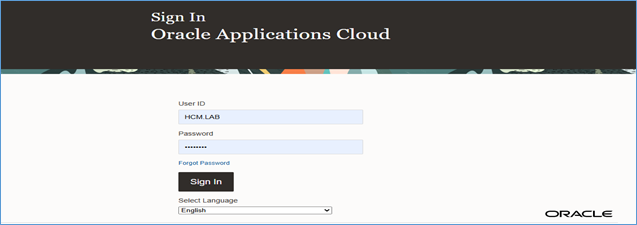
Step 2: To Open the BI Publisher use the POD link/analytics–
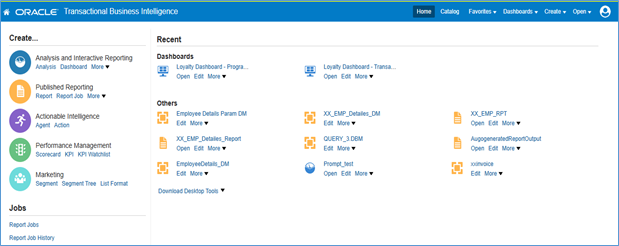
OR
Go to Tools > Report and Analytics
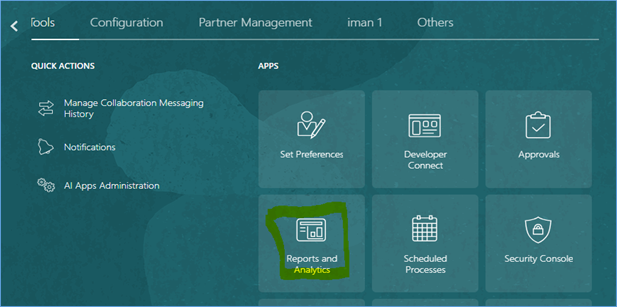
Click on Browser Catalog
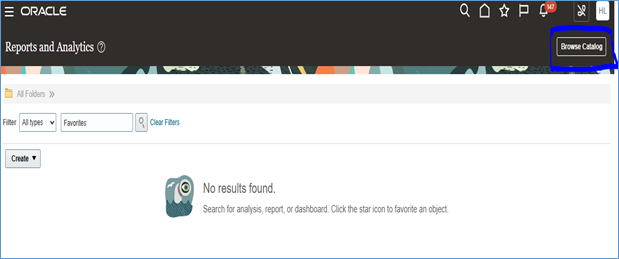
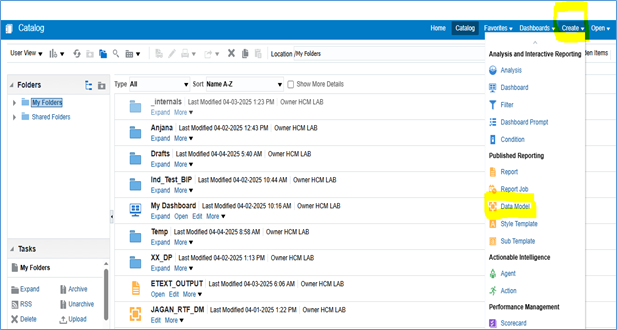
Step 3: Click on Diagram -Select SQL Query Option and Click on it.
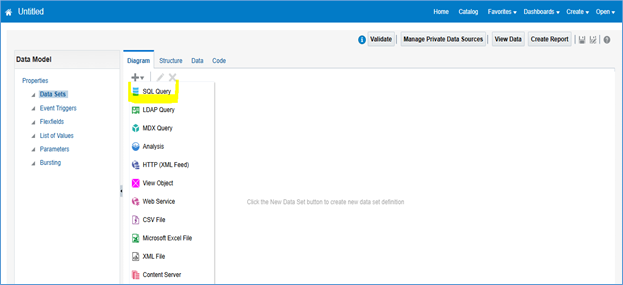
Step 4: Write name –select data Source-Application DB_HCM and write a query for Single Bursting Report to get the data which is needed for report under SQL Query Box after that click on OK button.
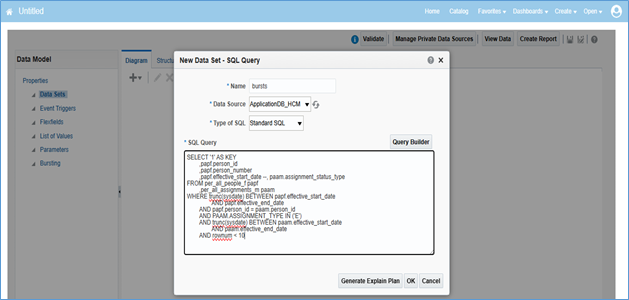
Query for Single Bursting to create the Data Model
select ‘1’ as key,
papf.person_id, papf.person_number, papf.effective_start_date –, paam.assignment_status_type
from per_all_people_f papf,
per_all_assignments_m paam
where trunc(sysdate) between papf.effective_start_date and papf.effective_end_date
and papf.person_id=paam.person_id
AND PAAM.ASSIGNMENT_TYPE IN (‘E’)
and trunc(sysdate) between paam.effective_start_date and paam.effective_end_date
and rownum<10
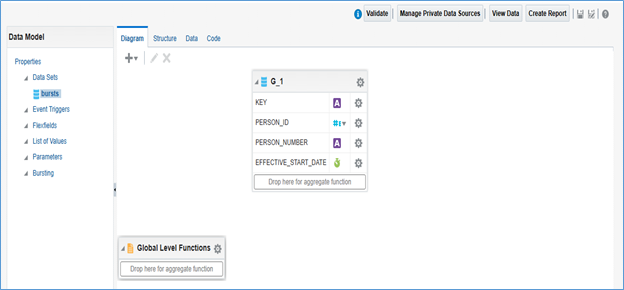
In this query, the key (often called the bursting key) plays a critical role in controlling how data is segmented and how reports are delivered to different recipients. A single bursting key, with a constant value of 1, is used for all records. The report fetches all person-related details — such as person ID, person number, effective date, and assignment status type — in a single bursting report.
Click on Save button to save the data model.
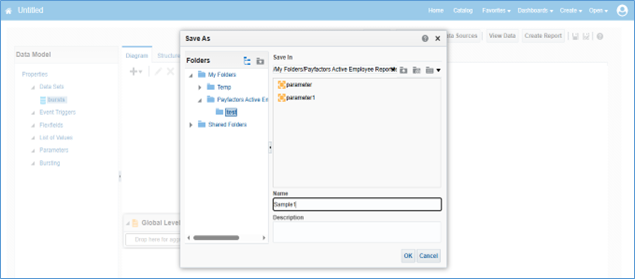
Select the Data Model and Click on “OK” button.
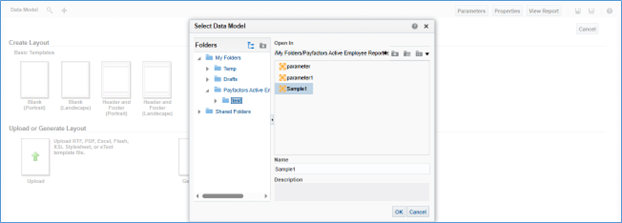
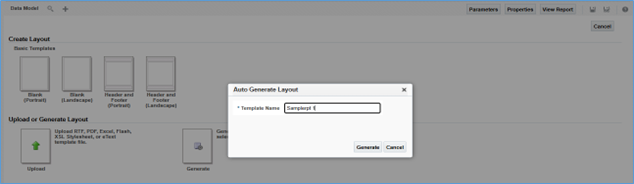
After Generated the Report click on “View a list”
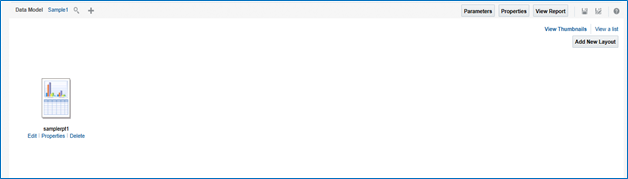
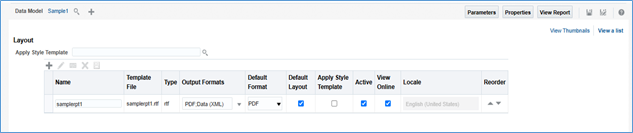
Layout is displayed in the screen and set the “Output Formats” like file format –PDF,XML,Excel etc.Click on “Save” button.
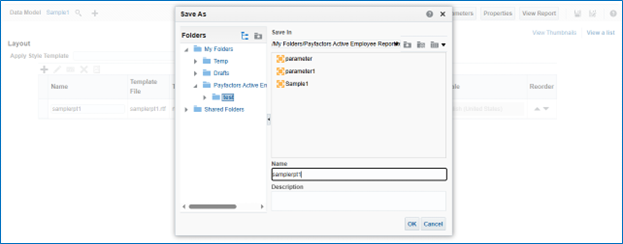
After click on “Save” button Pop window is appearing and give the name –Click on “OK” button.
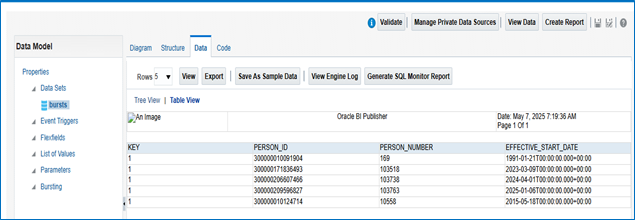
Step 6: Click on Bursting option which is showing last option under properties in left hand side
Step 7: Click on add(+) button and type the name and select data source.
-Write the name and Select the “Data Source” –Write the SQL Query in Box and click on “Save “Button.
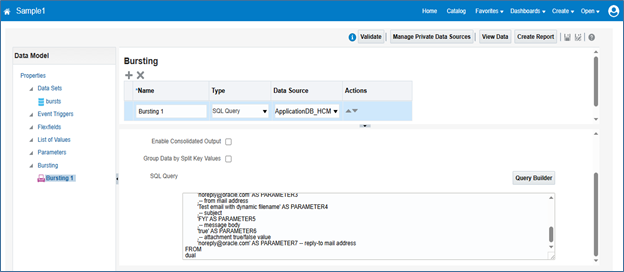
Query for Single Bursting during creating the Bursting –
select
‘1’ as “KEY”, — must be same as split by
‘samplerpt1’ as “TEMPLATE”, — report template name
‘RTF’ as TEMPLATE_FORMAT, — template format
‘PDF’ as OUTPUT_FORMAT, — output format pdf rtf text etc..
‘Test’ || to_char(sysdate,’YYYYMMDD’) OUTPUT_NAME, — Output File Name
‘EMAIL’ as DEL_CHANNEL, — delivery channel name email,fax,print etc..
‘mahshweta@gmail.com‘ as PARAMETER1, — to mail address
‘mahshweta@gmail.com‘ as PARAMETER2, — CC mail address
‘noreply@oracle.com‘ as PARAMETER3, — from mail address
‘Test email with dynamic filename’ as PARAMETER4, — subject
‘FYI’ as PARAMETER5, — message body
‘true’ as PARAMETER6, — attachment true/false value
‘noreply@oracle.com‘ as PARAMETER7 — reply-to mail address
from dual
In the above query, the bursting key is defined to enable splitting of the report. This key is used to control various aspects of the bursting configuration, including the Report Template Name, Template Format, Output Format, Output File Name, and Delivery Channel (such as Email or FTP). Email addresses are used as parameters for the “To”, “CC”, and “From” fields, along with other details like the email subject.
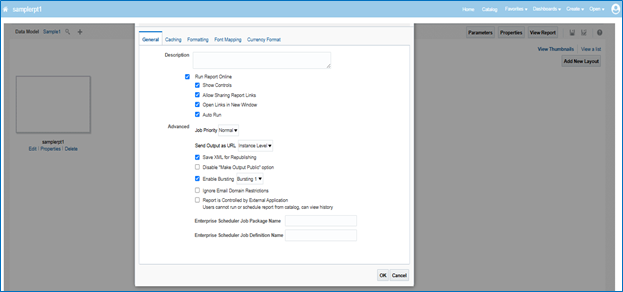
Click on “Edit” button under Report Option
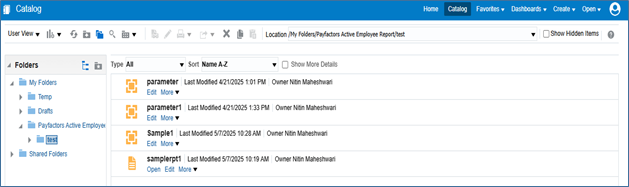
Click on “Enable Bursting” Option –Click on “OK” button.
Step 8: Scheduling the Bursting Report
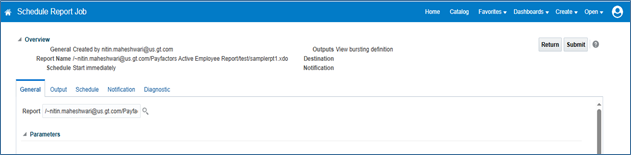
After that again go to back where is Report and Select “More” Option under the Report-Select “Schedule” Option.
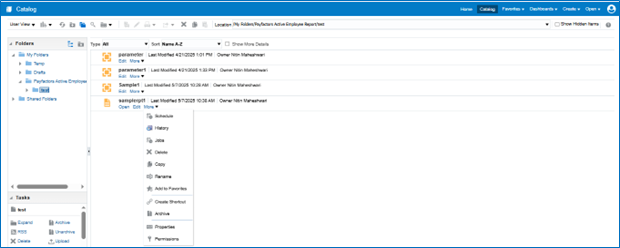
If parameter is given in the query, then showing otherwise not displaying under General Tab.
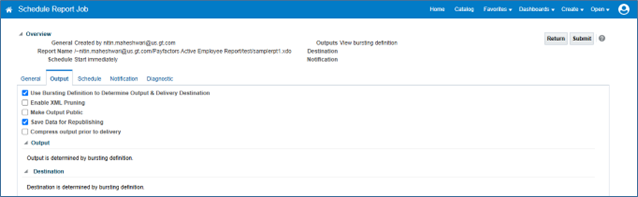
Click on Output Tab and Check the Destination
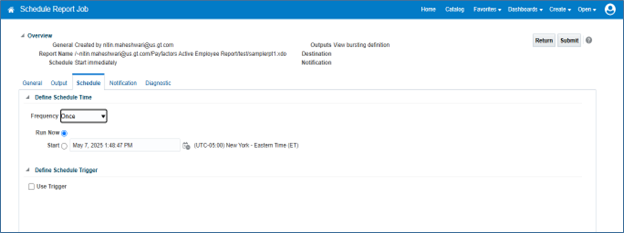
Click on Schedule tab and organize the schedule according to Days, Week, Month etc.
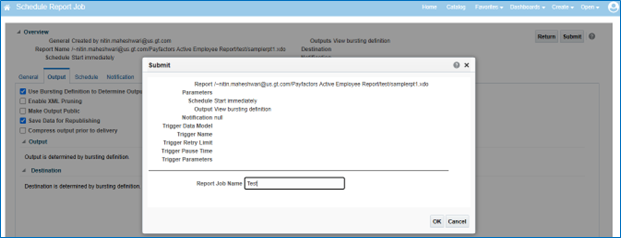
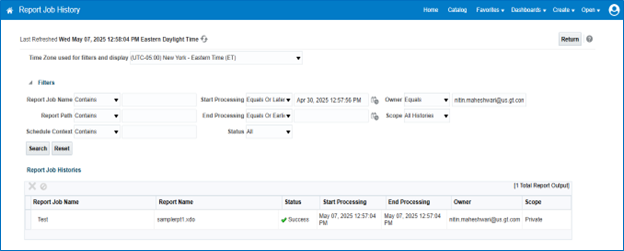
Step 9: Click on “Report Job History”
Report Job History is showing the status “Success” and check the mail
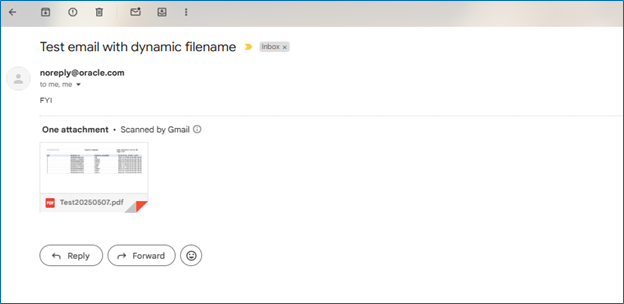
Step 10: Now, check the delivery on email address specified in the Bursting Options. The received email displays the subject line, attached PDF report, and message content as defined in the Bursting Query.
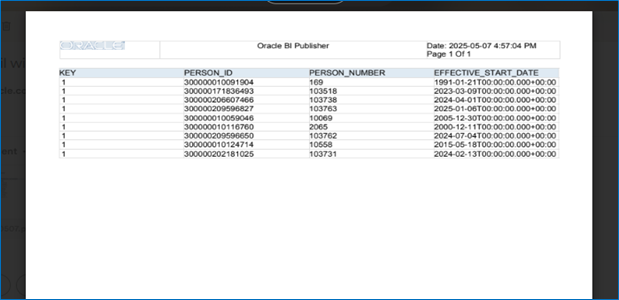
This the Single Bursting Report which is received in the specified mail –Download in PDF Form and take Print.
Multiple Bursting in Oracle Fusion HCM
Multiple bursting refers to distributing a single report output to multiple recipients, each receiving a personalized version of the report.
- Used in BI Publisher to break a single report into parts based on defined bursting criteria (e.g., department, legal employer).
- Supports multiple output formats and delivery channels — such as PDF via email, Excel to FTP, or HTML to printer — based on recipient preferences.
- Requires a bursting control file (XML or embedded SQL query) defining:-
- How to split the report (bursting key),
- Who gets which part (email/user info),
- What format to use,
- Delivery method.
Helps automate and streamline mass communication, such as pay slips, performance reports, or audit logs.
- Ensures data security and privacy — each user sees only their own data.
- Common use cases include pay slip distribution, benefit statements, and performance review summaries.
** Please following the Same steps 1 to 3 (Fig 1 to 6) for save the Data Model and Generate the Bursting Report
Step 11: Write name –select data Source-Application DB_HCM and write a query for Multiple Bursting Report to get the data which is needed for report under SQL Query Box after that click on OK button.(Instead of Fig 7 –Refer-Fig 29-having the different Data Model for Multiple Bursting)
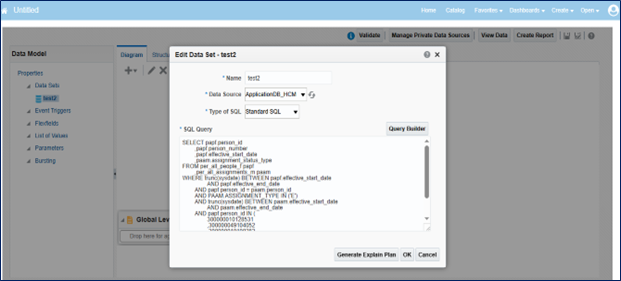
Query for Multiple Bursting during creating the Bursting –
select papf.person_id, papf.person_number, papf.effective_start_date, paam.assignment_status_type
from per_all_people_f papf,
per_all_assignments_m paam
where trunc(sysdate) between papf.effective_start_date and papf.effective_end_date
and papf.person_id=paam.person_id
AND PAAM.ASSIGNMENT_TYPE IN (‘E’)
and trunc(sysdate) between paam.effective_start_date and paam.effective_end_date
and papf.person_id in (300000010128531,300000049104052,300000010100282,300000010140102,300000010079999,300000010022279)
In this query, the key—commonly referred to as the bursting key—plays a crucial role in determining how data is segmented and how reports are distributed to various recipients. A multiple bursting key is used, where the assignment status type remains constant across all records. The report retrieves comprehensive person-related information, including person ID, person number, effective date, and assignment status type. Based on the specified filters, particularly a list of person IDs, the report includes data for those individuals—whether they are active or inactive—according to the assignment status type, as part of a multiple bursting report.
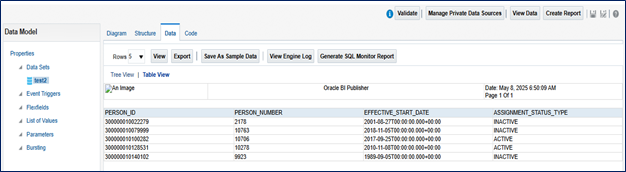
** Please following the Same steps 4 to 5 (Fig 8 to 15) for login the screen and Save, mapping the Date Model and Creating the Report and Save the Multiple Bursting Report
Step 12: Click on Bursting option which is showing last option under properties in left hand side.(Instead of Fig 16 –Refer-Fig 30-using the different Data Model for creating a Multiple Bursting)
Step 13: Click on add (+) button and type the name and select data source.-Write the name and Select the “Data Source” –Write the SQL Query in Box and click on “Save“ Button.(Instead of Fig 17 –Refer-Fig 31-Mapping the Sql Query in Bursting Option for creating a Multiple Bursting)
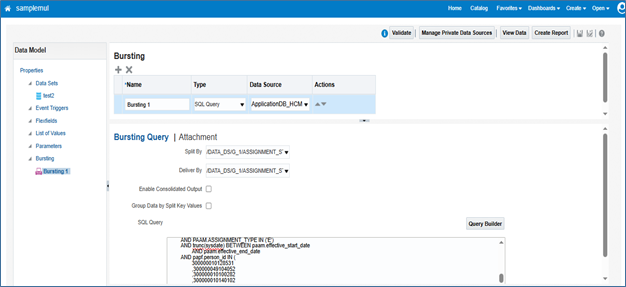
Query for Multiple Bursting during creating the Bursting –
select
paam.assignment_status_type as KEY, — must be same as split by
‘samplemul1’ as “TEMPLATE”, — report template name
‘RTF’ as TEMPLATE_FORMAT, — template format
‘PDF’ as OUTPUT_FORMAT, — output format pdf rtf text etc..
paam.assignment_status_type|| to_char(sysdate,’YYYYMMDD’) OUTPUT_NAME, — Output File Name
‘EMAIL’ as DEL_CHANNEL, — delivery channel name email,fax,print etc..
‘mahshweta@gmail.com‘ as PARAMETER1, — to mail address
‘mahshweta@gmail.com‘ as PARAMETER2, — CC mail address
‘noreply@oracle.com‘ as PARAMETER3, — from mail address
‘Test email with dynamic filename’ as PARAMETER4, — subject
‘FYI’ as PARAMETER5, — message body
‘true’ as PARAMETER6, — attachment true/false value
‘noreply@oracle.com‘ as PARAMETER7 — reply-to mail address
FROM
per_all_people_f papf,
per_all_assignments_m paam
where trunc(sysdate) between papf.effective_start_date and papf.effective_end_date
and papf.person_id=paam.person_id
AND PAAM.ASSIGNMENT_TYPE IN (‘E’)
and trunc(sysdate) between paam.effective_start_date and paam.effective_end_date
and papf.person_id in (300000010128531,300000049104052,300000010100282,300000010140102,300000010079999,300000010022279)
In the above query, the bursting key is defined to enable splitting of the report. This key is used to control various aspects of the bursting configuration, including the Report Template Name, Template Format, Output Format, Output File Name, and Delivery Channel (such as Email or FTP). Email addresses are used as parameters for the “To”, “CC”, and “From” fields, along with other details like the email subject.
Message body value passed as parameter and set ‘ true’ as a parameter for attachment file.
** Please referring the Same Processes according the Fig 18 to 25 for Editing and more option for Scheduling the Multiple Bursting Report.
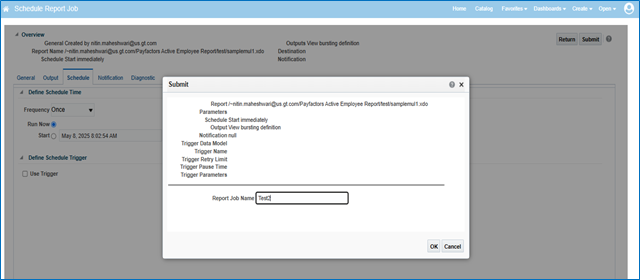
Click on “Submit button then showing the Pop Window –write the name of “Report Job Name”-Click on “OK” button.(Instead of Fig 24-Ref-Fig 32- To Submit the Report Job Name for Multiple Bursting)
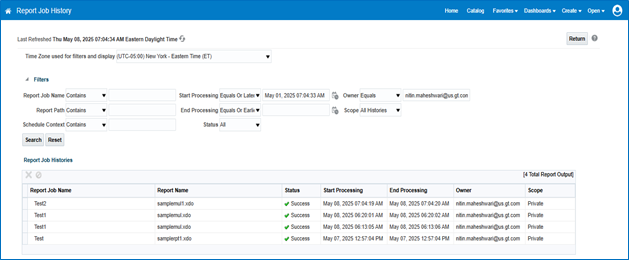
Step 14: Report Job History is showing the status “Success” and check the mail(Instead of Fig 26-Ref-Fig 33- having the Successful Status for Multiple Bursting)
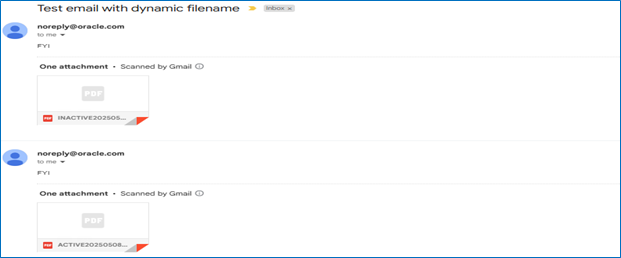
Step 15: Now, check the delivery on email address specified in the Bursting Options. The received email displays the subject line, attached PDF report, and message content as defined in the Bursting Query.(Instead of Fig 27-Ref-Fig 34- Showing the Multiple Bursting Report in the mail)
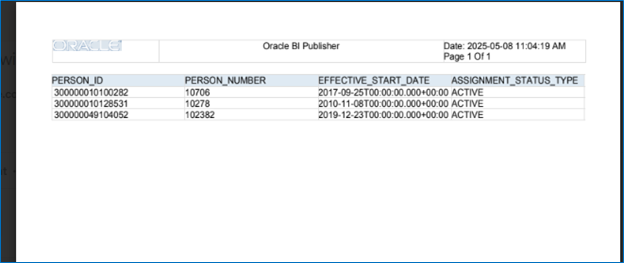
This the Multiple Bursting Report which is received in the specified mail –Download in PDF Form and take Print.(Instead of Fig 28-Ref-Fig 35 and 36- Showing the Multiple Bursting Report)
Report 1
Report 2