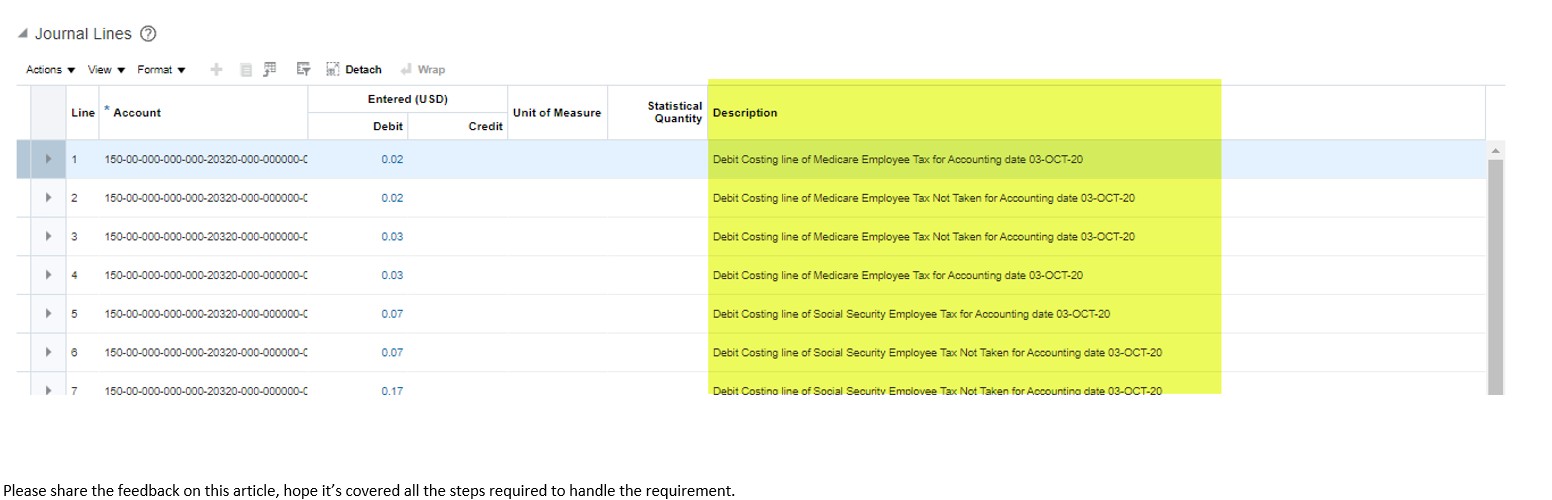
SLA configuration for Journal Description Changes
Issue -When accounting details flow from sub ledger (Payroll) to General ledger and journal got created in GL, financial users are not able to identify the element name and accounting Date against which the entries flow from Payroll to GL, so Accountants are looking for some meaningful descriptions. By default lines getting created with description of “Journal Import Created”. As shown in below screenshot.

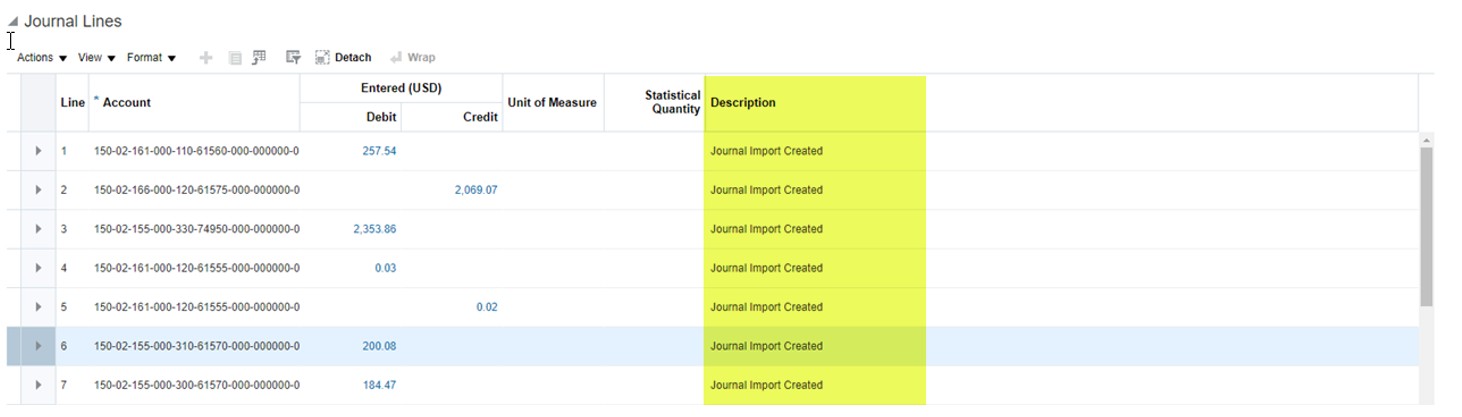
Requirement– Add the description on journal lines created for entry flown from Payroll to SLA and finally to GL.
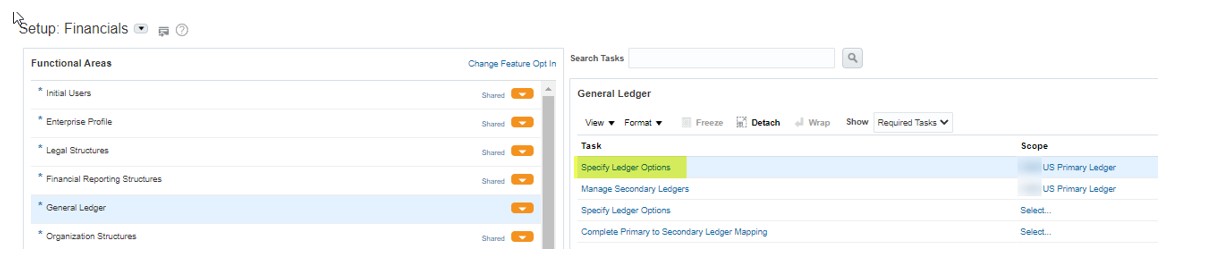
Step1– First we have to check the Sub ledger Accounting Method set at the GL Primary Ledger. For that we can go to Setup and Maintenance > Financial > General Ledger > Specify Ledger Option.
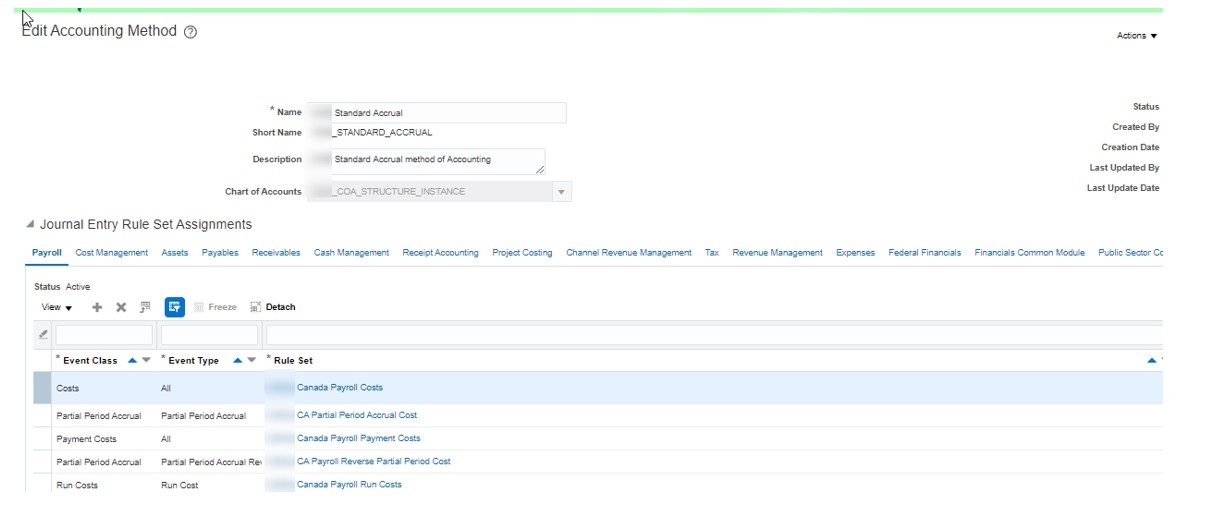
Step-2 – Now to customize the SLA configuration we have to copy the accounting method by copying the one we got from step1.
To copy that setup we have to go to Implementation Project > Workforce Deployment > Define Payroll > Define Payroll Costing > Define Subledger Accounting Rules > Define Subledger Accounting Methods > Manage Accounting Methods
Step-3 – To create custom rule set we have to go to to Implementation Project > Workforce Deployment > Define Payroll > Define Payroll Costing > Define Sub ledger Accounting Rules > Define Sub ledger Accounting Methods > Manage Sub ledger Journal Entry Rule Sets

Step-4 – To create custom description we have to go to Implementation Project > Workforce Deployment > Define Payroll > Define Payroll Costing > Define Sub ledger Accounting Rules > Define Sub ledger Accounting Methods > Manage Description Rules
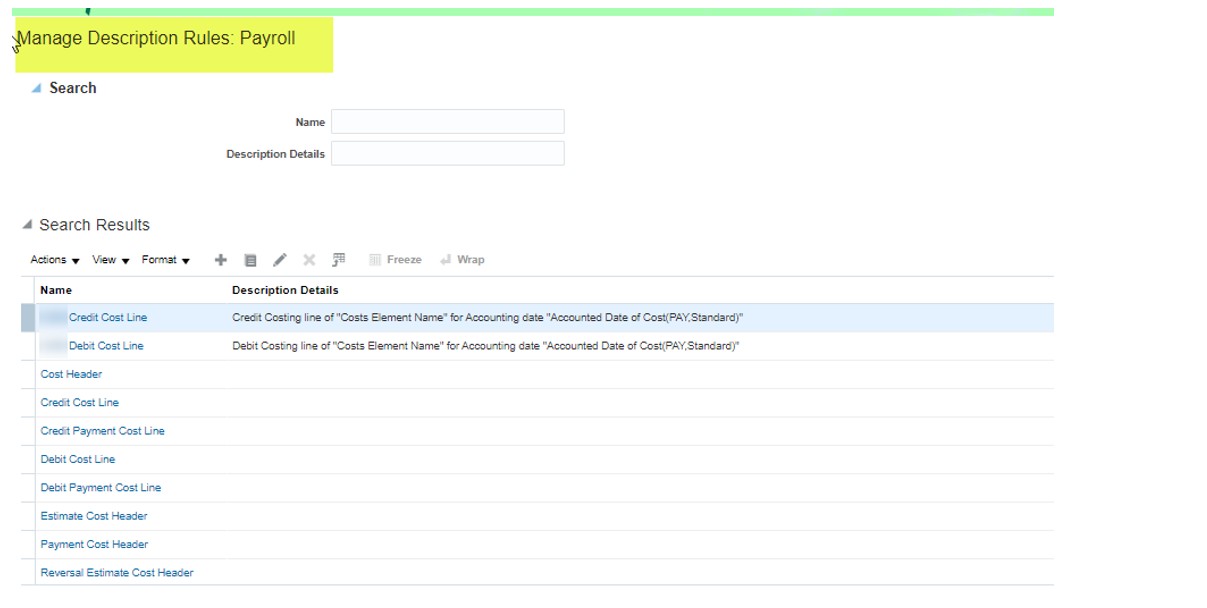
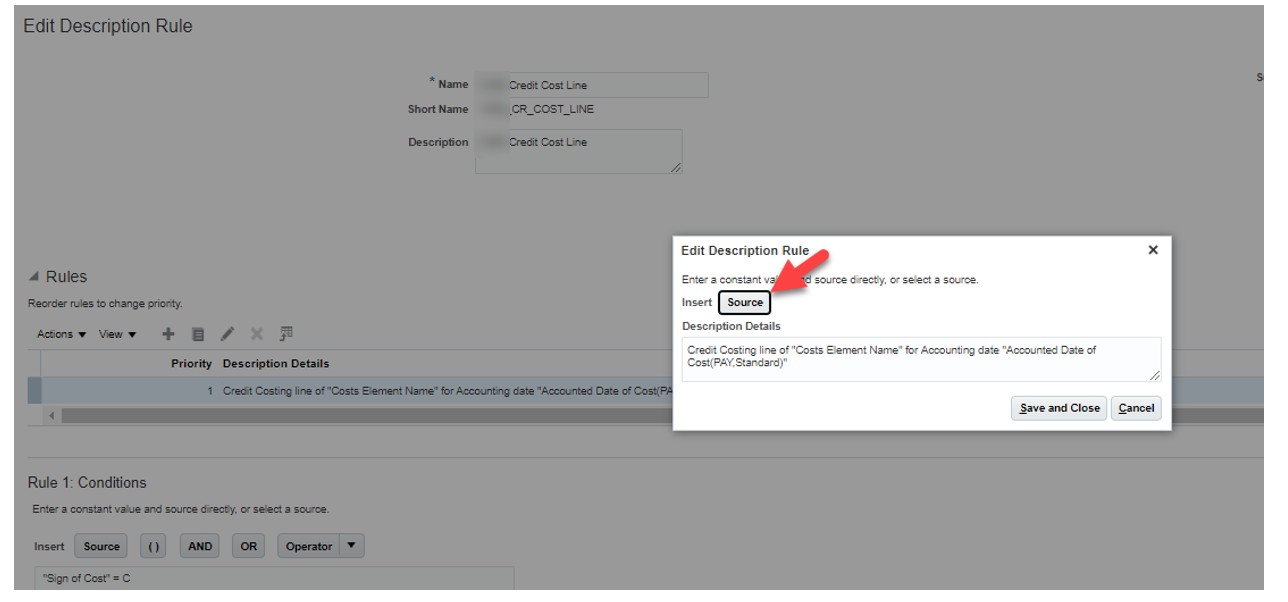
Once we done with creation of custom description need to attach to the rule set by selecting the custom description from LOV.
Step-5 – As a final step we have to change the setting at SLA Accounting Option, to do that we can go to the Implementation Project > Workforce Deployment > Define Payroll > Define Payroll Costing > Define Sub ledger Accounting Rules > Define Sub ledger Accounting Methods > Manage Sub ledger Accounting Options
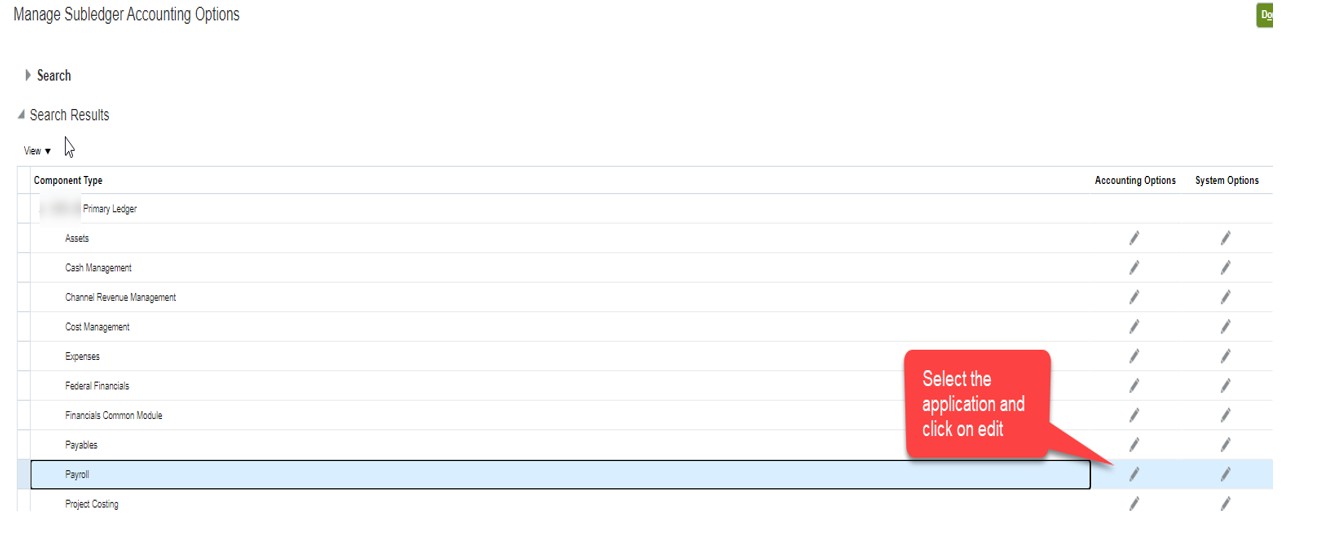
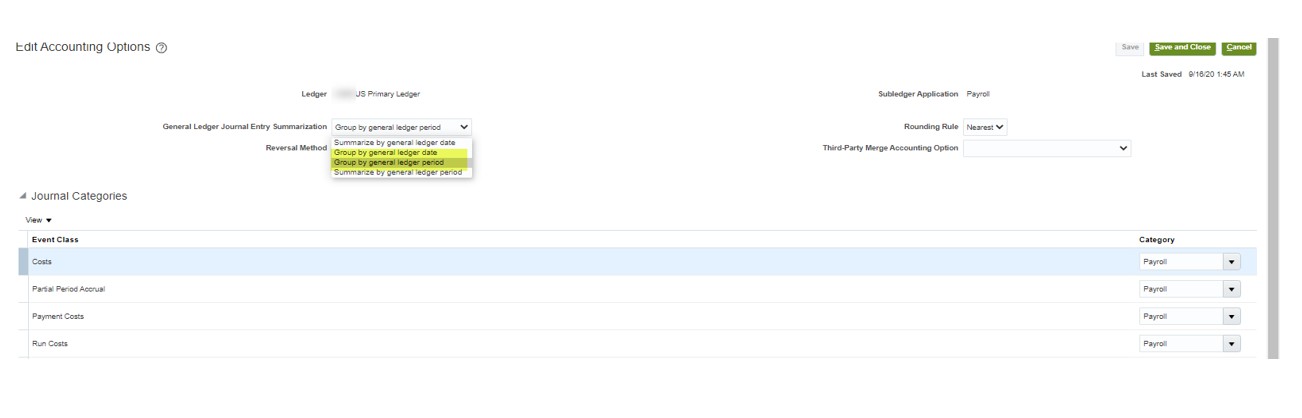
Step-5 – As a final step we have to change the setting at SLA Accounting Option, to do that we can go to the Implementation Project > Workforce Deployment > Define Payroll > Define Payroll Costing > Define Sub ledger Accounting Rules > Define Sub ledger Accounting Methods > Manage Sub ledger Accounting Options
- 1. Group by General Ledge Dated
- 2. Group by General Ledge Perio
Step6– Once done with all the steps we have to validate the configuration as while doing the changes the status of all the object become incomplete. To validate we can run the process from Implementation Project > Workforce Deployment > Define Payroll > Define Payroll Costing > Define Sub ledger Accounting Rules > Define Sub ledger Accounting Methods > Activate Sub ledger Journal Entry Rule Set Assignments